Basic Linux Commands

Linux is a Unix-like computer operating system assembled under the model of free and open-source software development and distribution. The defining component of Linux is the Linux kernel, an operating system kernel first released on 5 October 1991 by Linus Torvalds.
Linux is a critical technology for IT Profession to understand.
Some of the many reasons to learn LINUX include.
In Application Development, Linux hosts the application or its runtime.
In cloud computing, the cloud instances in the private or public cloud environment use Linux as the operating system.
With mobile applications or the Internet of Things (IoT), the chances are high that the operating system of your devices uses Linux.
Popular LINUX Distributions
1. Ubuntu
2. Debian
3. CentOS Linux
4. CentOS Stream
5. Red Hat Enterprise Linux (RHEL)
6. Gentoo
7. Fedora
8. OpenSUSE
9. Scientific Linux
10. CloudLinux
Architecture of Linux:
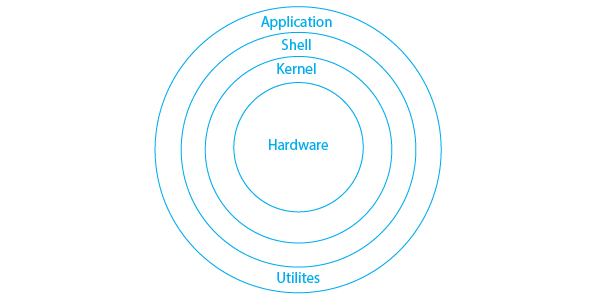
Hardware: Hardware consists of all peripheral devices (RAM/ HDD/ CPU etc).
Kernel: Kernel is the Core component of the Operating System, interacts directly with hardware, and provides low-level services to upper-layer components.
Shell: An interface to the kernel, hiding the complexity of the kernel's functions from users. Takes commands from a user and executes kernel's functions.
Application: The topmost layer of the Linux architecture consists of user-facing applications such as web browsers, text editors, and office suites.
LINUX Commands
The Linux command is a utility of the Linux operating system. All basic and advanced tasks can be done by executing commands.
Listing commands:
ls option_flag arguments --> List the subdirectories and files available in the present directory.
Examples:
ls -l--> List the files and directories in a long list format with extra information.
ubuntu@ip:/$ ls -l
total 64
lrwxrwxrwx   1 root root     7 May 16 02:08 bin -> usr/bin
drwxr-xr-x   4 root root  4096 May 16 02:12 boot
drwxr-xr-x  14 root root  3220 Jul 27 07:21 dev
drwxr-xr-x  94 root root  4096 Jul 26 07:25 etc
drwxr-xr-x   4 root root  4096 Jul 26 07:25 home
lrwxrwxrwx   1 root root     7 May 16 02:08 lib -> usr/lib
lrwxrwxrwx   1 root root     9 May 16 02:08 lib32 -> usr/lib32
lrwxrwxrwx   1 root root     9 May 16 02:08 lib64 -> usr/lib64
lrwxrwxrwx   1 root root    10 May 16 02:08 libx32 -> usr/libx32
drwx------   2 root root 16384 May 16 02:10 lost+found
drwxr-xr-x   2 root root  4096 May 16 02:08 media
drwxr-xr-x   2 root root  4096 May 16 02:08 mnt
drwxr-xr-x   2 root root  4096 May 16 02:08 opt
dr-xr-xr-x 166 root root     0 Jul 27 07:16 proc
drwx------   4 root root  4096 Jul 26 05:56 root
drwxr-xr-x  26 root root   880 Jul 27 07:16 run
lrwxrwxrwx   1 root root     8 May 16 02:08 sbin -> usr/sbin
drwxr-xr-x   8 root root  4096 May 16 02:14 snap
drwxr-xr-x   2 root root  4096 May 16 02:08 srv
dr-xr-xr-x  13 root root     0 Jul 27 07:16 sys
drwxrwxrwt  11 root root  4096 Jul 27 07:22 tmp
drwxr-xr-x  14 root root  4096 May 16 02:08 usr
drwxr-xr-x  13 root root  4096 May 16 02:09 var
ubuntu@ip-172-31-17-190:/$
ls -a-> list all including hidden files and directories.
ubuntu@ip:/home$ ls -a
.  ..  ashin  ubuntu
ubuntu@ip-172-31-17-190:/home$
ls *.sh --> list all the files having .sh extension.
ubuntu@ip:~/DevOps$ ls *.sh
credentails.sh  user.sh
ubuntu@ip:~/DevOps$
ls -i --> list the files and directories with index numbers inodes.
ubuntu@ip:~/DevOps$ ls -i
258368 Learning.txt  258356 credentails.sh  258336 user.sh
ubuntu@ip-172-31-17-190:~/DevOps$
ls -d */ --> list only directories. (we can also specify a pattern).
ubuntu@ip:/$ ls -d */
bin/  boot/  dev/  etc/  home/  lib/  lib32/  lib64/  libx32/  lost+found/  media/  mnt/  opt/  proc/  root/  run/  sbin/  snap/  srv/  sys/  tmp/  usr/  var/
ubuntu@ip:/$
Directory commands:
pwd --> Print work directory. Gives the present working directory.
ubuntu@ip-172-31-17-190:~$ pwd
/home/ubuntu
ubuntu@ip-172-31-17-190:~$
cd path_to_directory --> Change the directory to the provided path.
ubuntu@ip-172-31-17-190:/$ cd /home/ubuntu/
ubuntu@ip-172-31-17-190:~$
cd ~ or just cd --> Change the directory to the home directory.
ubuntu@ip-172-31-17-190:~/DevOps$ cd ~
ubuntu@ip-172-31-17-190:~$
cd - --> Go to the last working directory.
ubuntu@ip-172-31-17-190:~$ cd /home/ubuntu/DevOps/
ubuntu@ip-172-31-17-190:~/DevOps$ cd -
/home/ubuntu
ubuntu@ip-172-31-17-190:~$
cd .. --> Change the directory to one step back.
ubuntu@ip-172-31-17-190:~$ cd /home/ubuntu/DevOps/
ubuntu@ip-172-31-17-190:~/DevOps$ cd ..
ubuntu@ip-172-31-17-190:~$ pwd
/home/ubuntu
ubuntu@ip-172-31-17-190:~$
cd ../.. --> Use ls ../.. for contents two levels above.
ubuntu@ip-172-31-17-190:~/DevOps$ pwd
/home/ubuntu/DevOps
ubuntu@ip-172-31-17-190:~/DevOps$ cd ../..
ubuntu@ip-172-31-17-190:/home$ pwd
/home
ubuntu@ip-172-31-17-190:/home$
mkdir directoryName --> Use to make a directory in a specific location.
ubuntu@ip-172-31-17-190:~$ mkdir CloudOps
ubuntu@ip-172-31-17-190:~$ ls
CloudOps  Copy  DevOps
mkdir .NewFolder --> Make a hidden directory (also . before a file to make it hidden)
ubuntu@ip-172-31-17-190:~$ mkdir .90DaysOfDevOps
ubuntu@ip-172-31-17-190:~$ ls -a
.  ..  .90DaysOfDevOps  .bash_history  .bash_logout  .bashrc  .cache  .profile  .ssh  .sudo_as_admin_successful  .viminfo  CloudOps  Copy  DevOps
ubuntu@ip-172-31-17-190:~$
mkdir A B C D --> Make multiple directories at the same time.
ubuntu@ip-172-31-17-190:~$ mkdir Docker Terraform Ansible
ubuntu@ip-172-31-17-190:~$ ls
Ansible  CloudOps  Copy  DevOps  Docker  Terraform
ubuntu@ip-172-31-17-190:~$
mkdir -p A/B/C/D --> Make a nested directory
ubuntu@ip-172-31-17-190:~/DevOps$ mkdir -p A/B/C/D
ubuntu@ip-172-31-17-190:~/DevOps/A/B/C/D$
Happy Learning.
Follow me on Linkedin (www.linkedin.com/in/ashin-sasidharan) for more Blogs.


